Imagine waking up to a notification that your client’s ad account budget has been completely drained overnight, or worse—your personal bank balance is wiped out. You didn’t click any suspicious links or share your password. So, what went wrong? The terrifying truth is that a single insecure setting in your everyday browser could be acting as an open doorway for cybercriminals. If you run a digital marketing business or manage online payments using Google Chrome, you are a prime target. Here is how to lock down your browser before a single loophole costs you your hard-earned business revenue.
Why Digital Marketers Are High-Value Targets for Hackers: As digital freelancers and online business owners, our web browsers are the control centers of our entire operation. We store client login credentials, connect credit cards to ad managers, and handle sensitive business data daily.
Because we manage multiple high-budget accounts across platforms like Facebook Ads, Google Ads, and e-commerce portals, cybercriminals no longer just target massive corporations. They actively look for individual marketers with loose browser security. A minor vulnerability in your setup can lead to unauthorized access, stolen data, and devastating financial liability.
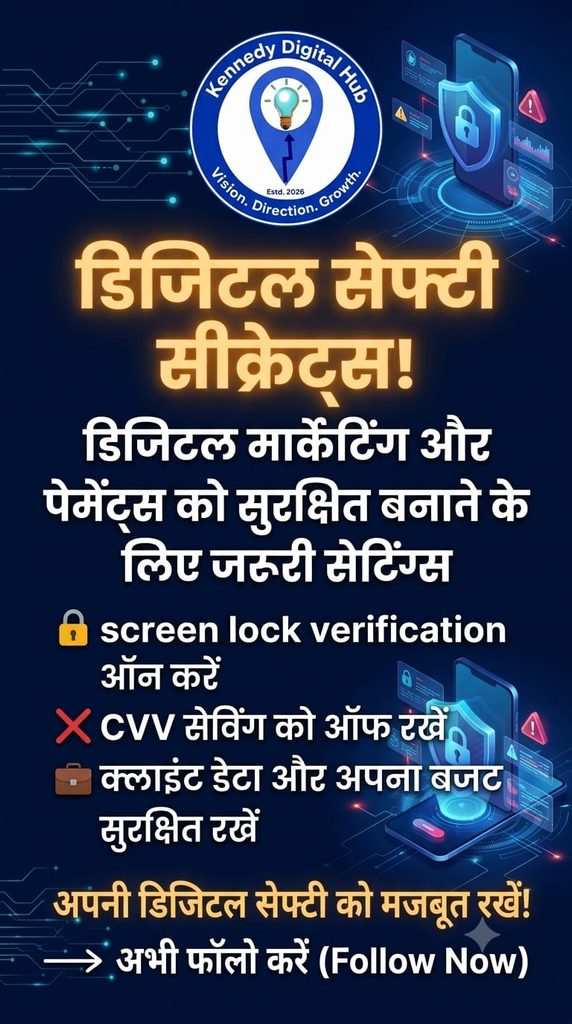
Step-by-Step Security Settings to Change Immediately: To protect your digital assets, open your Google Chrome browser right now and update these two critical configurations:
- Enable Screen Lock Verification in Google Password Manager: By default, if someone gains access to your physical laptop or remotely compromises your system, they can view or auto-fill your saved passwords seamlessly.
- How to fix it: Click the three dots in the top-right corner of your Chrome browser and head to Settings. Open the Google Password Manager section and locate its internal settings menu. Toggle the Screen Lock Verification button to ON. Now, Chrome will strictly require your device’s biometric PIN or system password before displaying or auto-filling any credential.
- Disable CVV Auto-Save under Payment Methods: Saving payment methods saves time, but keeping your card’s security code stored in the browser removes the final line of defense against automated unauthorized transactions.
- How to fix it: Step back out into the main Chrome Settings menu and click on Payment methods. Look for the option that prompts you to save security codes or CVV numbers, and turn it OFF permanently.
Core Security Habits for Online Businesses: Beyond browser settings, maintaining absolute digital safety requires a proactive daily routine. Implement these fundamental rules to keep your operations secure:
- Enforce Two-Factor Authentication (2FA): Always activate mandatory 2FA across all business emails, domain hosting providers, and advertising managers.
- Isolate Client Profiles: Avoid mixing personal browsing with client accounts. Utilize separate, dedicated Chrome profiles for distinct clients or business operations.
- Audit Active Sessions: Routinely check the security dashboard of your primary business accounts to monitor active logged-in devices and immediately terminate unrecognized sessions.
Conclusion: Building a successful online business from scratch takes massive dedication, resilience, and hard work. Do not let a single moment of technical oversight ruin the client trust and financial foundation you have built. Taking exactly two minutes today to lock down your Google Chrome settings ensures that your hard-earned money and your client’s valuable data remain permanently protected.
Is your business fully protected against digital threats? Do not leave your hard-earned revenue to chance. Subscribe to our blog newsletter today to receive our exclusive, step-by-step digital safety checklists and weekly tips designed to keep your online business safe, secure, and scaling fast!
#DigitalSafety #DigitalMarketingTips #GoogleChrome #CyberSecurity #AdAccountSafety #OnlineSafety #MarketingHacks #TechTips #FreelancerLife #BusinessSecurity